
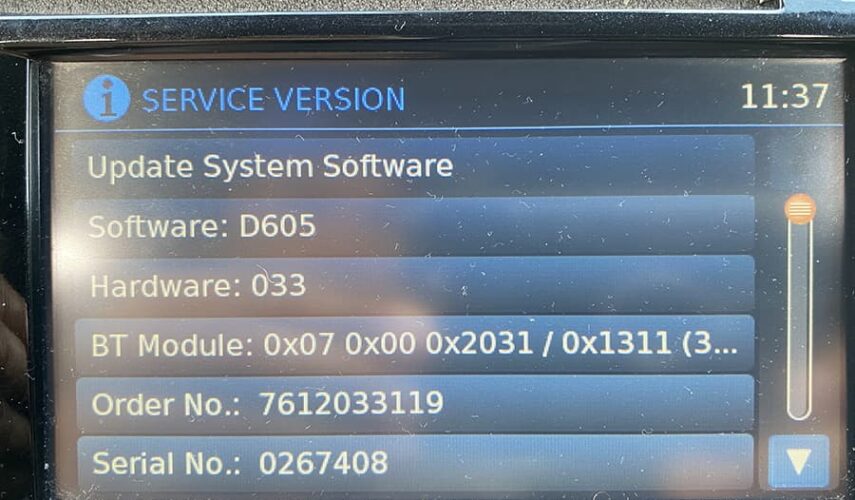
Nissan Connect D502 Firmware Update
Before you start
Important: Start the vehicle and keep the engine running until the firmware update is completely finished. The update takes approximately 50 minutes. Do not remove the USB drive or switch off the ignition during the update.
Before you start
Important: Start the vehicle and keep the engine running until the firmware update is completely finished. The update takes approximately 50 minutes. Do not remove the USB drive or switch off the ignition during the update.
1. Prepare the USB drive
Format a USB drive as FAT32. Copy the supplied firmware files directly to the root directory of the USB drive. Do not place the files inside another folder.
Format a USB drive as FAT32. Copy the supplied firmware files directly to the root directory of the USB drive. Do not place the files inside another folder.
2. Start the vehicle
Start the vehicle and leave the engine running throughout the entire firmware update. The update takes approximately 50 minutes.
3. Insert the USB drive
Insert the USB drive into the USB slot located in the centre console storage compartment.
4. Open the Service Menu
Press and hold the Setup button. While holding it, turn the Enter control half a turn counter-clockwise, then half a turn clockwise, then half a turn counter-clockwise again. The Service Menu will appear. Release the Setup button.
Press and hold the Setup button. While holding it, turn the Enter control half a turn counter-clockwise, then half a turn clockwise, then half a turn counter-clockwise again. The Service Menu will appear. Release the Setup button.
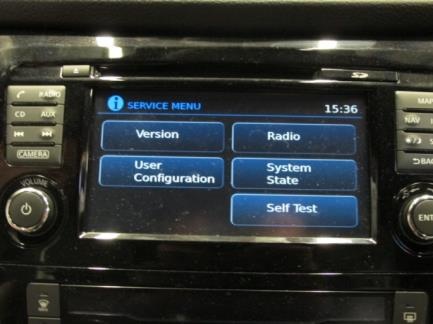
5. Open the software version screen
Press the Version button on the Nissan Connect screen.
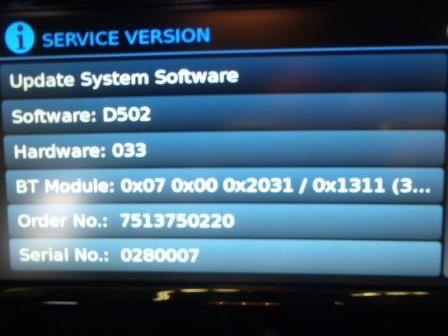
6. Start the software update
Select Update System Software. When prompted to insert the USB drive and press OK, press OK to start the download.
7. Do not interrupt the update
The Nissan Connect screen may go blank. This is normal while the system initializes the reprogramming process. Do not remove the USB drive and do not change the ignition position.
8. Wait for the firmware to install
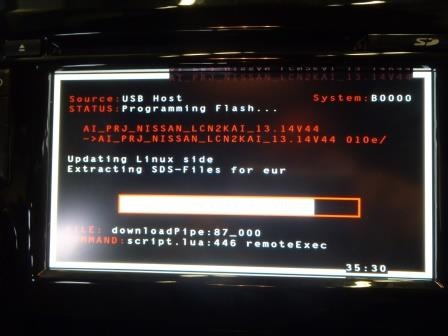
After up to approximately 5 minutes, the screen should become active and display Reading Medium. The firmware files will then be copied from the USB drive to the Nissan Connect unit. A progress/time counter may appear on the screen.
9. Allow the update to finish
The firmware update takes approximately 50 minutes. No user interaction is required during this stage. Keep the vehicle running and do not interrupt the process.
10. Remove the USB drive
When the update is complete, the screen will display Please remove USB Stick. System is shutting down. Remove the USB drive. The screen may remain on this message for up to 5 minutes; this is normal.
11. Restart and confirm
The Nissan Connect unit will reboot automatically. When the Nissan logo appears, the standard navigation message may be displayed. Press Accept if prompted.
12. Verify the firmware version
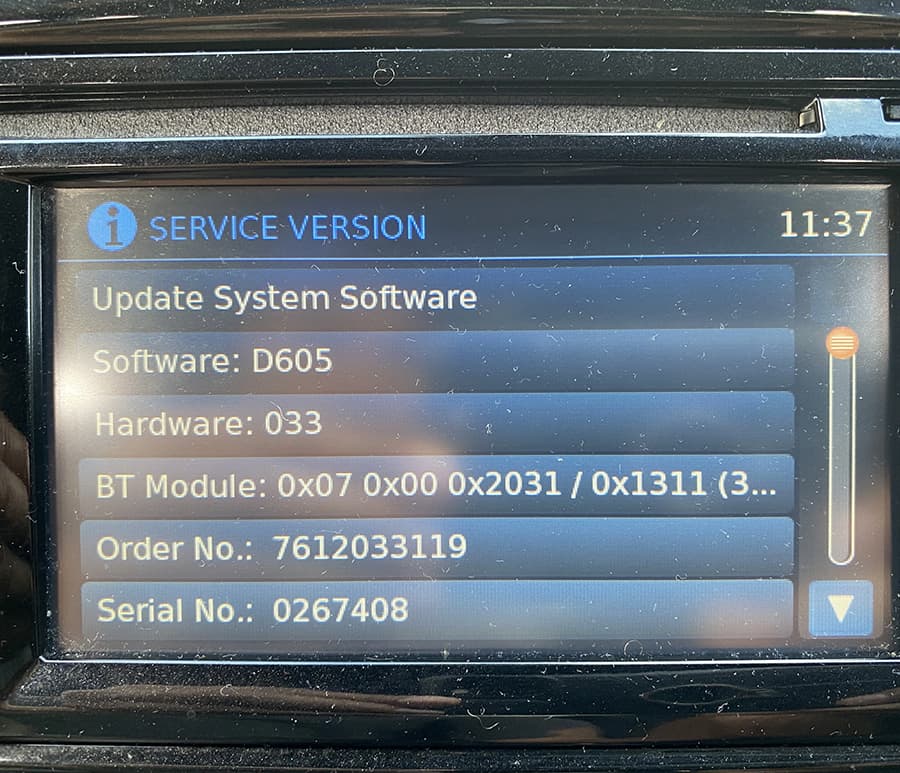
Open the Service Menu again using the Setup/Enter control sequence. Press Version and confirm that the Software version is D605.
Open the Service Menu again using the Setup/Enter control sequence. Press Version and confirm that the Software version is D605.
Important
The firmware update must not be interrupted. Do not remove the USB drive, switch off the ignition, or stop the vehicle during the update. An interrupted reprogramming process may prevent the Nissan Connect unit from operating correctly.
The firmware update must not be interrupted. Do not remove the USB drive, switch off the ignition, or stop the vehicle during the update. An interrupted reprogramming process may prevent the Nissan Connect unit from operating correctly.
Dónde puedo conseguir los archivos del firmware?
https://navi-world.com/product/nissan-connect-3-firmware-update-d605/