
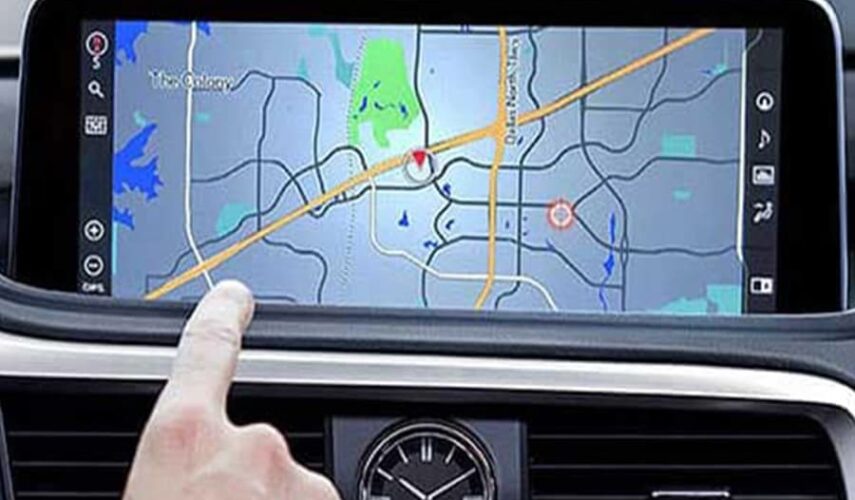
How do I update my Lexus Gen 10 navigation system?
Please follow the steps below to complete the update process successfully.
Step 1 – Place Your Order
Purchase the correct Lexus Gen 10 navigation update from our website.
Lexus Gen 10 firmware version example
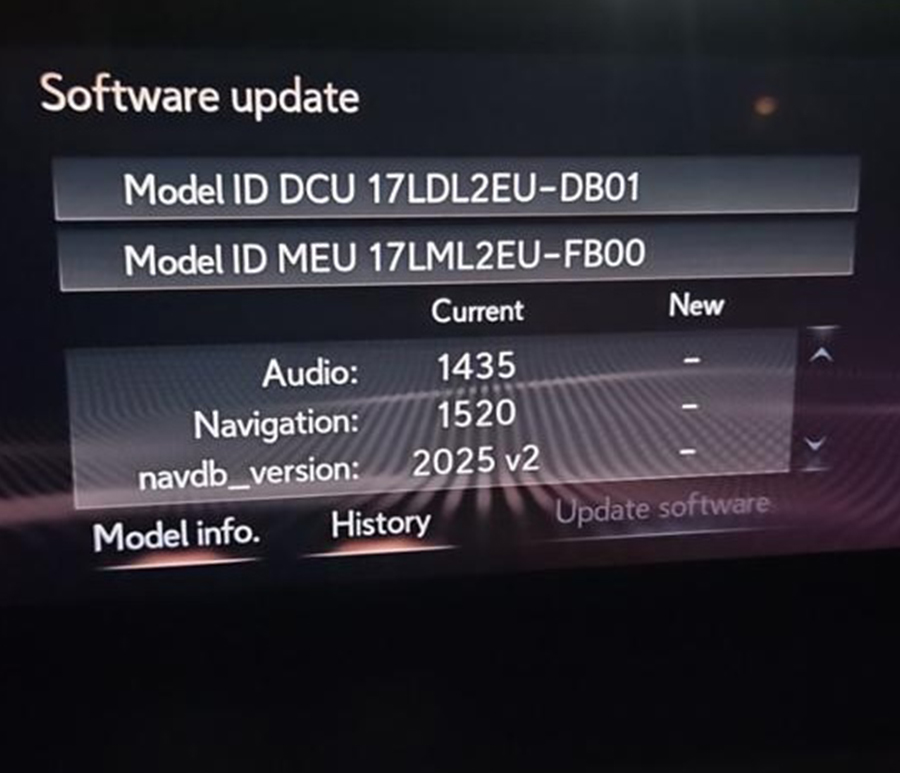
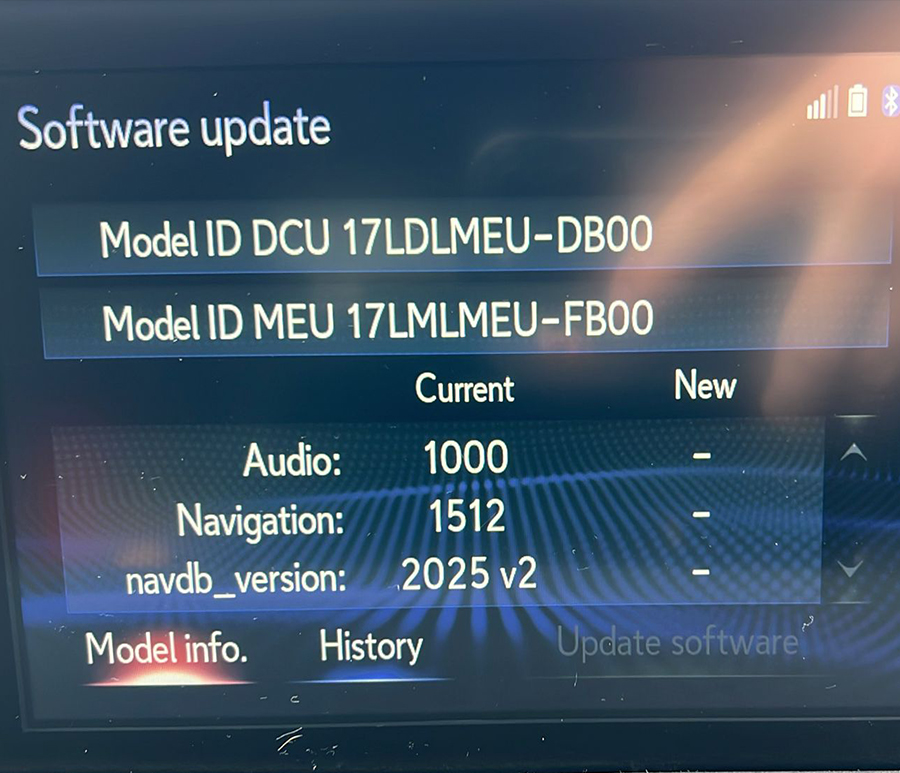
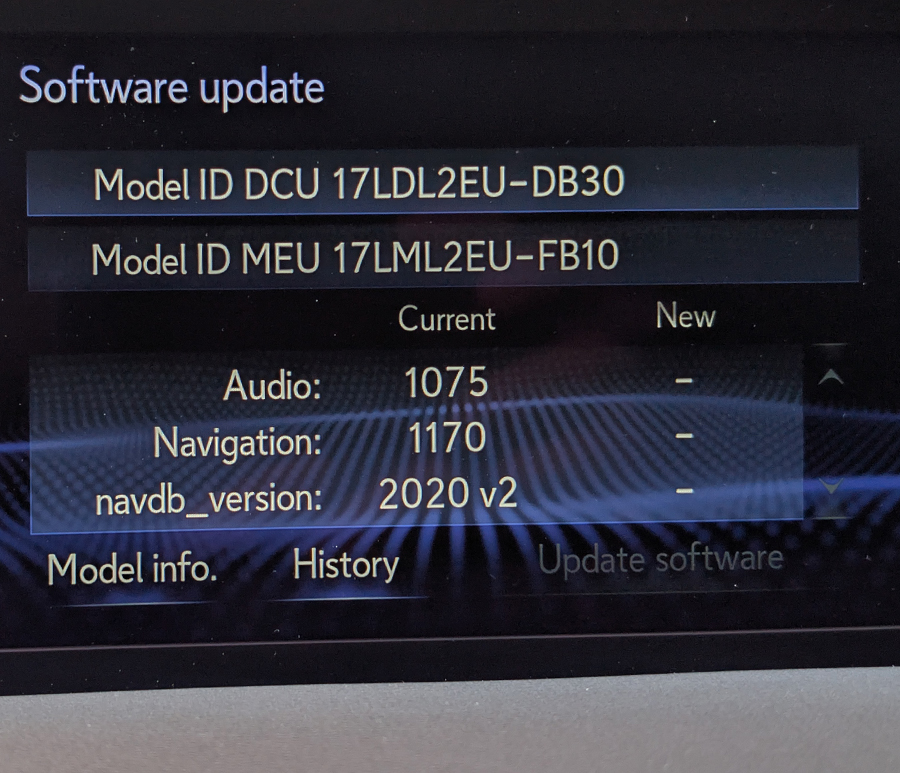
Step 2 – Receive the Update Files
After your order is confirmed, we will send you a download link to the update archive together with the preparation instructions.
Step 3 – Prepare the USB Drive
Please use the following requirements carefully:
- USB 2.0 flash drive only
- Maximum capacity: 32 GB
- Format: FAT32
- Prepare the USB drive using Windows
Important
Do not use macOS to prepare the update files.
If you only have a Mac, we strongly recommend using Parallels Desktop with a Windows virtual machine. Parallels offers a 14-day free trial: https://www.parallels.com
Step 4 – Copy the Update Files
Extract the downloaded archive on your Windows PC and copy all files and folders to the root directory of the FAT32 USB drive.
Do not place the files inside another folder.
Step 5 – Start the Update in the Vehicle
- Start your Lexus vehicle.
- Insert the prepared USB flash drive into the vehicle’s USB port.
- The system will automatically detect the update and begin the installation process.
Step 6 – Send Us the Request Code
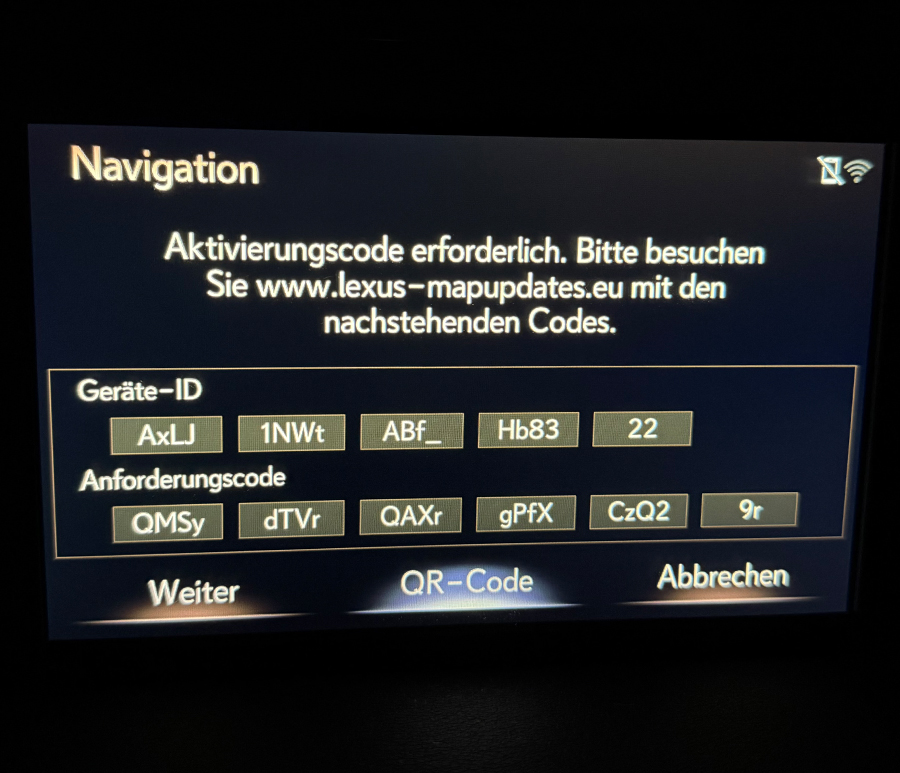
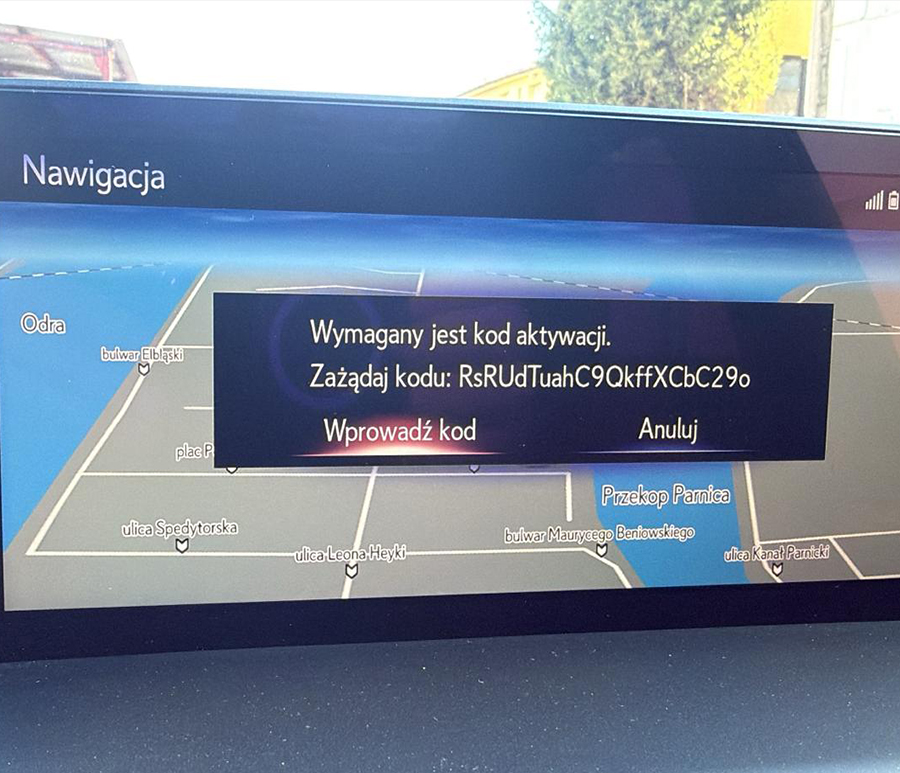
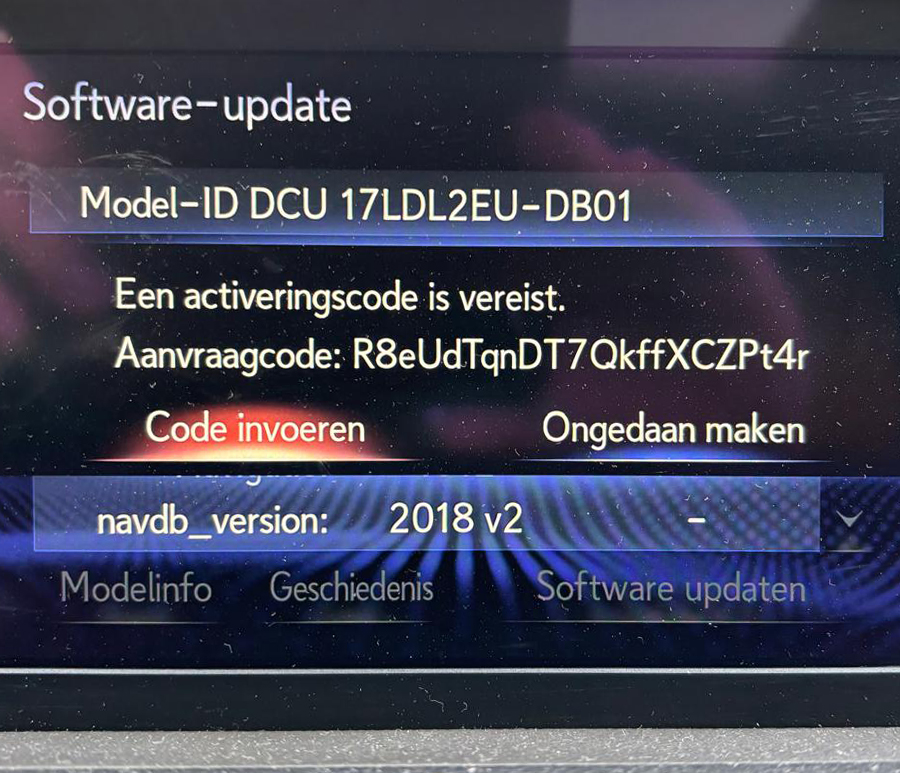
During the update, the system will display a Request Code on the screen.
Please send us a photo of the Request Code exactly as shown.
Lexus Gen 10 request code example
Step 7 – Receive the Activation Code
After receiving your Request Code, we will generate and send you the corresponding Activation Code required to continue the installation.
Enter the Activation Code into the Lexus navigation system when prompted.
Step 8 – Complete the Installation
After entering the Activation Code:
- Confirm the update.
- Wait until the installation is fully completed.
- The process usually takes approximately 40 minutes.
During the update
- Keep the engine running or ensure the battery is sufficiently charged.
- Do not remove the USB drive.
- Do not switch off the ignition until the process is finished.
What happens after the update?
Once the installation is complete, the system will restart automatically. You can then check the new map version in the navigation settings menu.
Need Help?
If you have any questions during the process, simply contact us using this form and include:
- Your order number
- A photo of the Request Code
We are always happy to help you complete your Lexus Gen 10 navigation update successfully.
0 Comments for “FAQ – Lexus Gen 10 Navigation Data Update Guide”