
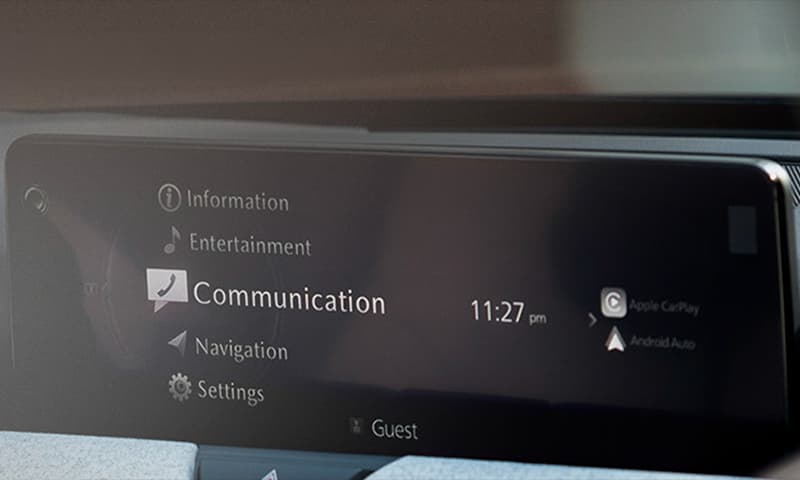
Gracenote Update Process.
By updating the latest Gracenote media database, it is possible to update the music information and album art displayed during audio playback to the latest version.
- Insert the USB memory into your computer.
- Click [DOWNLOAD] for the target market below to download the latest update package (Gracenote_<version>_<region>.mcg) file to an USB stick. Make sure that the update package file is stored at the top level of the USB drive’s file folder.
*The update package file must be stored at the top level of the USB memory file. If you save it to a folder created by yourself on an USB memory, you will not be able to update it. - After making sure it has been downloaded to the USB stick, safely remove the USB stick from the computer and insert it into the vehicle’s USB port.
- On your vehicle’s center display screen, select [Settings].
- Scroll down and select [System Settings].
- Select [Gracenote Database Update].
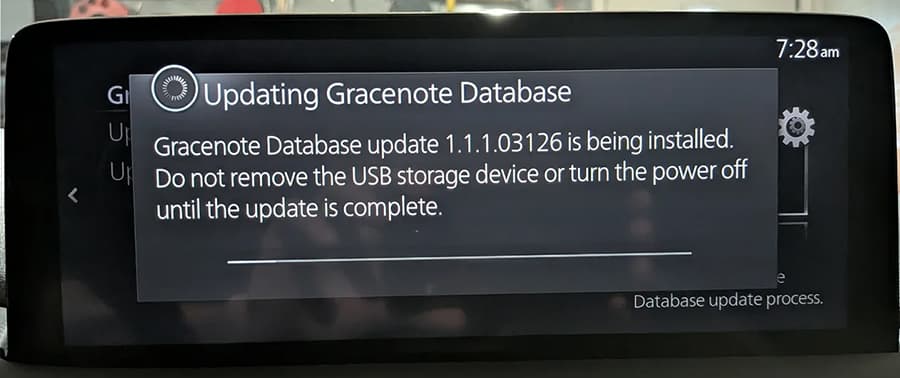
- The center display shows the current version. Select [Update].
- The update might take a few minutes. Once completed, an installation completion message will be displayed.
- Safely remove the USB memory from the vehicle’s USB port.
17 Feb. 2026 Updated
Region1 Europe, Turkey, Australia, New Zealand
Region2 USA, Canada, Mexico, Puerto Rico
Region3 Hong Kong, Macau
Region4 Others
0 Comments for “Mazda Gracenote Database Update. Mazda Connect 2”