

Correctly formatted and empty SD card:
- The USB stick should be formatted as either FAT32 (Windows) or vFAT (Linux).
- USB 1.1 or 2.0 are supported.
Download the ZIP file:
- Extract the files from the ZIP archive directly onto the USB stick.
- Ensure that the complete set of 13 or 14 files (including the additional file “kds.dnl,” if present) is copied directly to the root directory of the USB stick.
- Do not create subfolders.
- Approximate file size: ~3 GB.
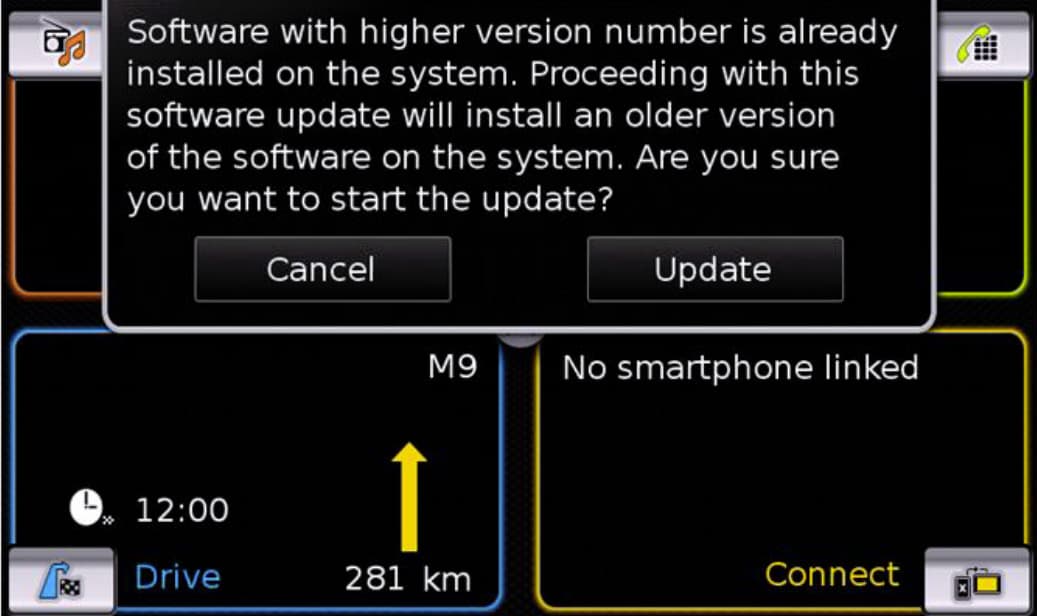
SW version downgrade functionality:
- If an older software version is detected during the update process, a popup will notify the user.
- The user can choose to either cancel or proceed with the downgrade.
Steps to Start the Software Update
1.Prepare the Vehicle:
- Turn the ignition key to the “ON” position and start the Smart Play unit.
2.Insert the SD card:
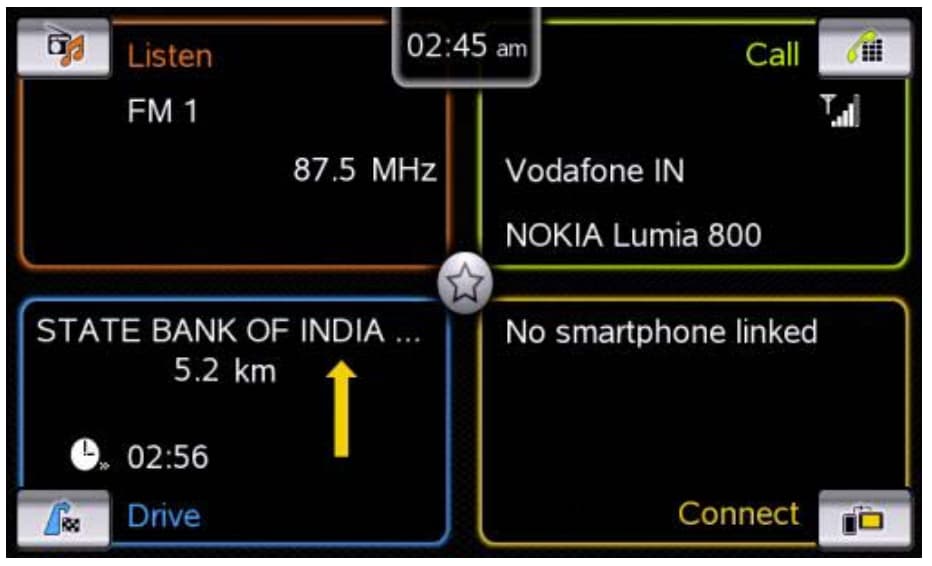
- Once the home screen appears, connect the prepared SD card (with the files mentioned above) to the SD card slot of the vehicle.
- After inserting the SD card, the screen will turn black for approximately 10 seconds.

Software Update Progress:
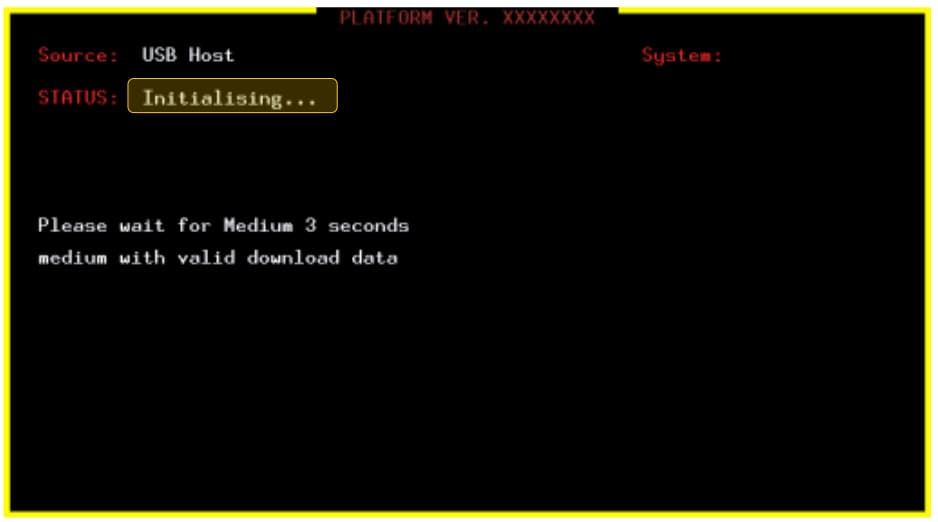
- The software update will initialize and proceed automatically.
- The update process consists of several steps, and the progress bar may remain unchanged for several minutes.
Important note:
- After inserting the screen turns black for ~10 seconds
- The initialization takes ~1 minute
- Security validation (until 50%) = 5-7 minutes d) USB download = 12-15 minutes
- In case, audio is being played in SmartPlay; audio will play until 82% of software update and then turn off. At 83% progress the screen turns black for 2 seconds and then the update continues automatically
- Screen might turn black for a couple of seconds several times during this update
- From the time of initialization, the total time taken for software updation will be ~25 minutes
3.Confirmation of Successful Update:
-
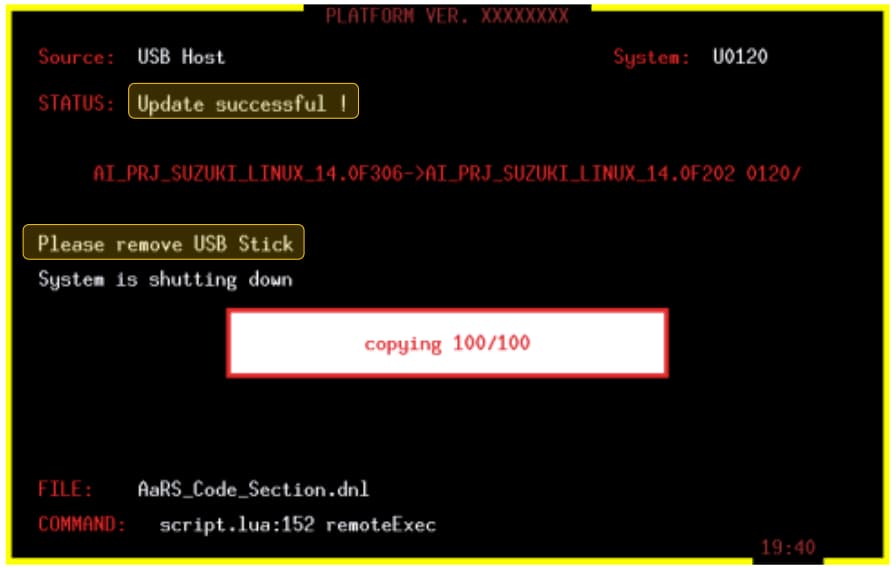
- Once the software update is successfully completed, the installation screen will confirm this.
- Remove the USB stick.
- Following the removal of the USB stick, the device will reset.
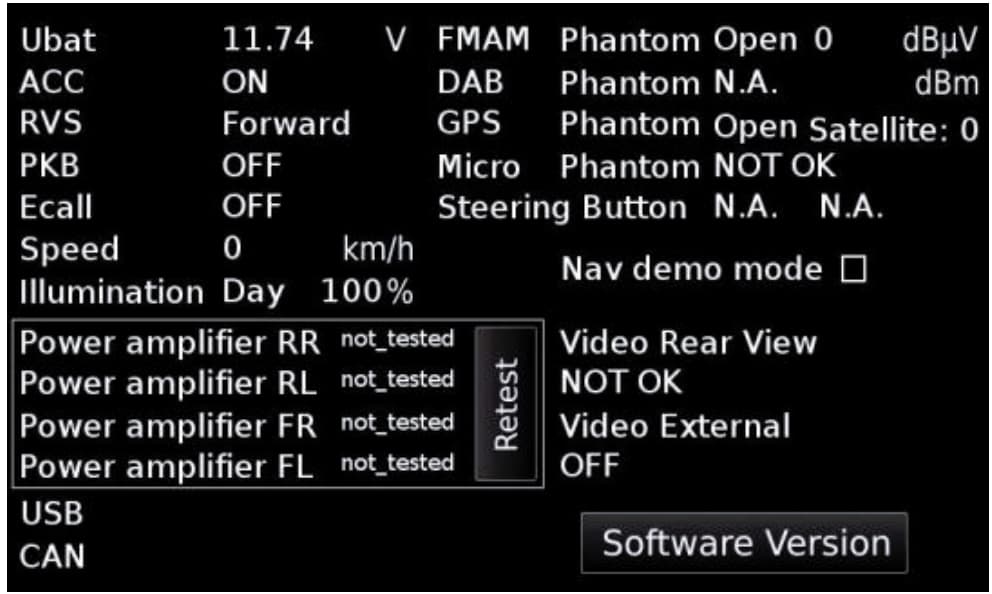
4.Special Case: If the USB stick contains the additional file “kds.dnl”:
-
-
- A second system restart will occur automatically within 60 seconds.
- After restarting, the SUZUKI startup logo will appear, and the device will enter Stand-by mode.
- Turn off the ignition for 1 minute, then turn it back on.
- Press the Power button after the SUZUKI startup logo appears.
-
5.Verify the Software Update:
-
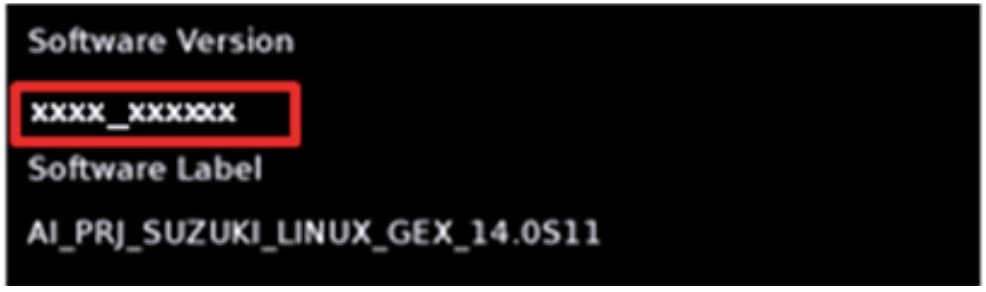
- To confirm the successful update, check the software version of the Smart Play unit:
- Tap and hold the “Settings” button for approximately 10 seconds.
- Choose the “Software Version” option on the screen to view the version details.
- To confirm the successful update, check the software version of the Smart Play unit:
Il link per scaricare la versione 1880 di SOAP7? (devo effettuare l’upgrade da versione 1870)
Hello
https://navi-world.com/product/suzuki-slda-firmware-update-1890/
Elle est formatée ” fat32 “
Esto actualiza el sistema operativo, los mapas o ambos?? Gracias
This is only firmware update
for navigation update you need this sd card https://navi-world.com/product/suzuki-39921-54pa8-sd-card-europe-2023/
Ça marche parfaitement sur ma baleno de 2015.
Une fois la clé usb préparer, insérer, moteur allumé, la cle usb et attendre une vingtaine de minutes. C’est fini. Android auto fonctionne
Where can i download the 1891 version update?
Hello
No changes between 1890 and 1891 at all.
Sorry to be a pain but the above information keeps jumping from “SD card” to “USB stick”.
Can you please confirm which – or is it both – should be used.
Cheers,
John
Hello
You can use usb stick or sd card. it really doesnt matter.